


Autodesk says “Animations cannot currently be rendered in Fusion 360.” But animations can be exported without rendering. This is still useful when you want to present the model rather than its beauty shot.
Let me share a quick post on how to export a 360 degree rotation shot (aka turntable video) of a 3D model in Autodesk Fusion 360.
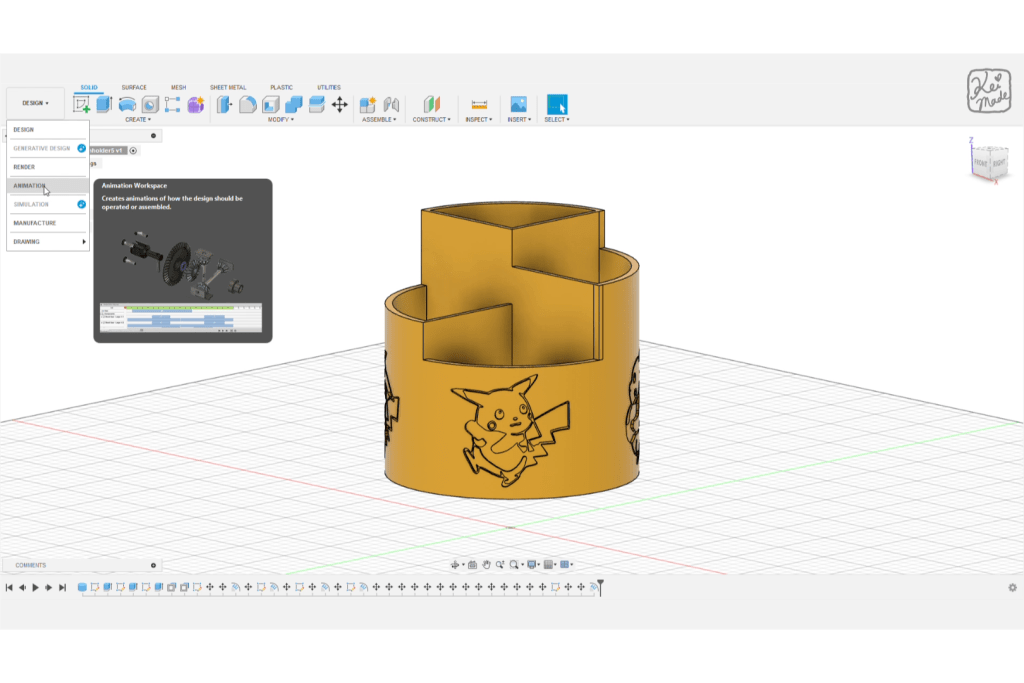
1. Switch over to the Animation mode using the top-left drop down.
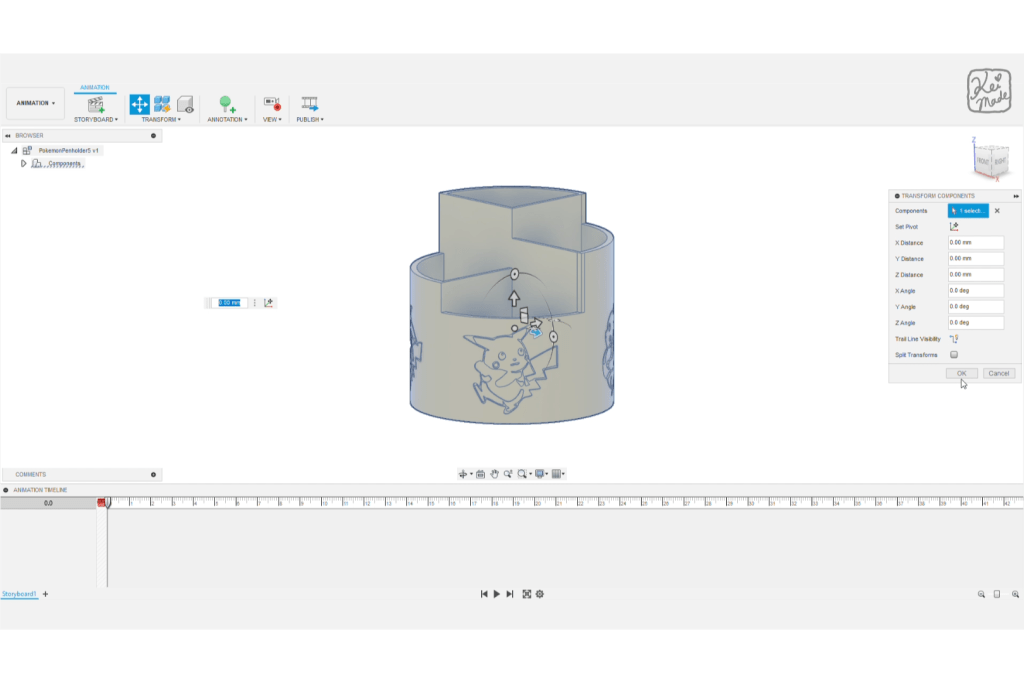
2. Drag the timeline cursor to 0, click on the body to rotate, and click Transform.

3. In the transform window, leave everything as is and click OK. (Orbit and adjust the viewport to get your perfect starting shot.)
4. Drag the timeline cursor to about 10 seconds.
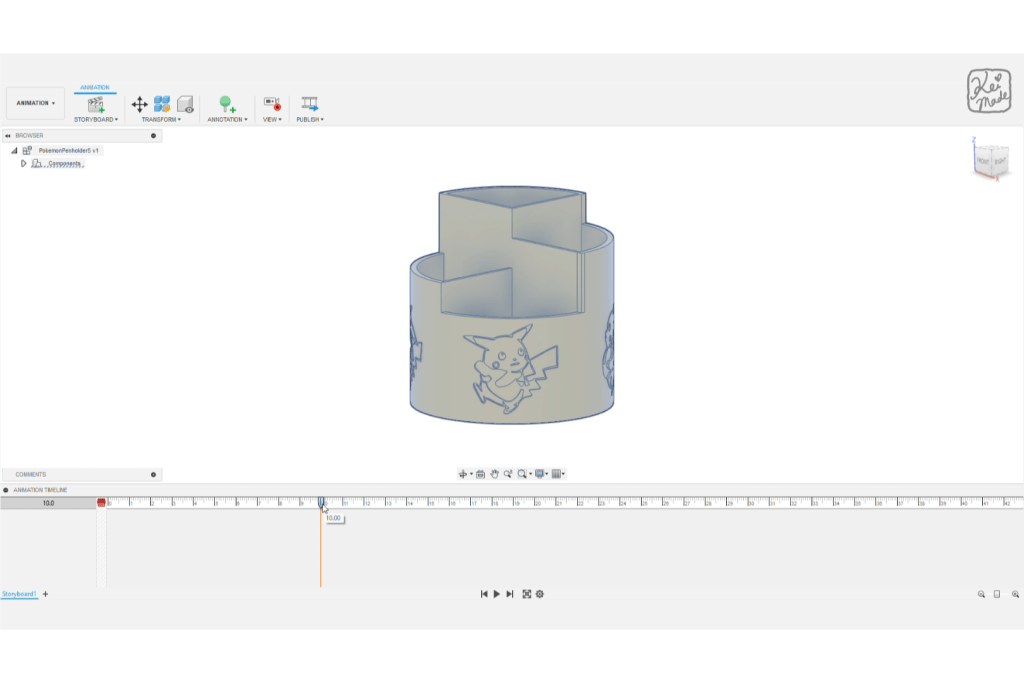
5. Still with the body selected, click Transform.

6. In the transformation window, change the Z-Angle to 360 degrees. Hit OK.

Now when you click on the Play button at the bottom of the window, the body will rotate 360 degrees over 10 seconds.
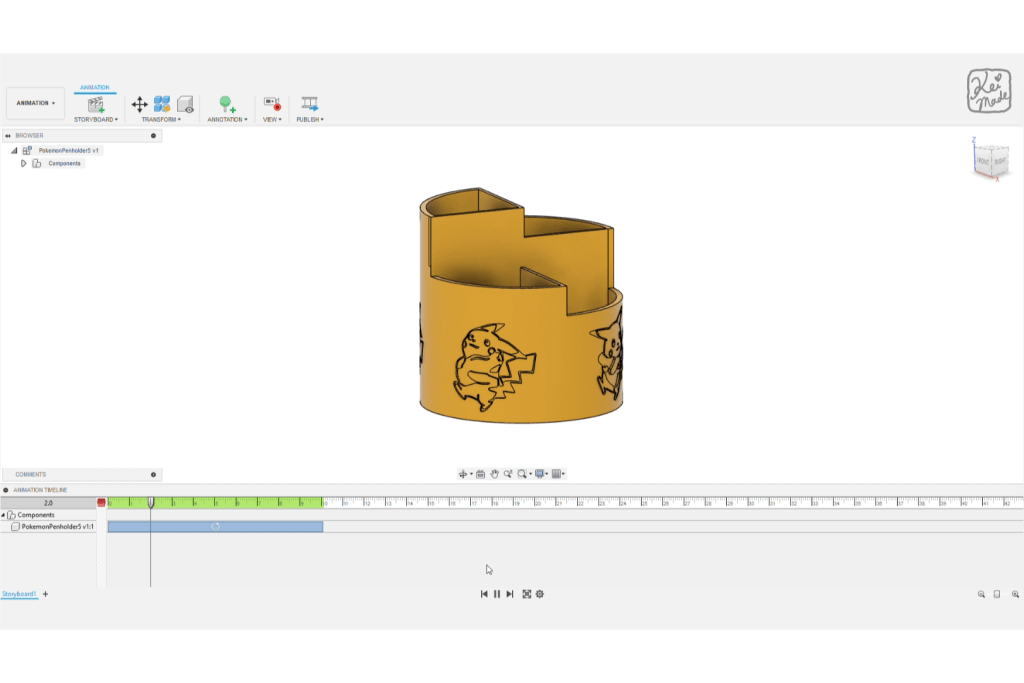
To export this animation as a video, click Publish.

Hit OK on the two windows that appear (assuming no setting needs changing).
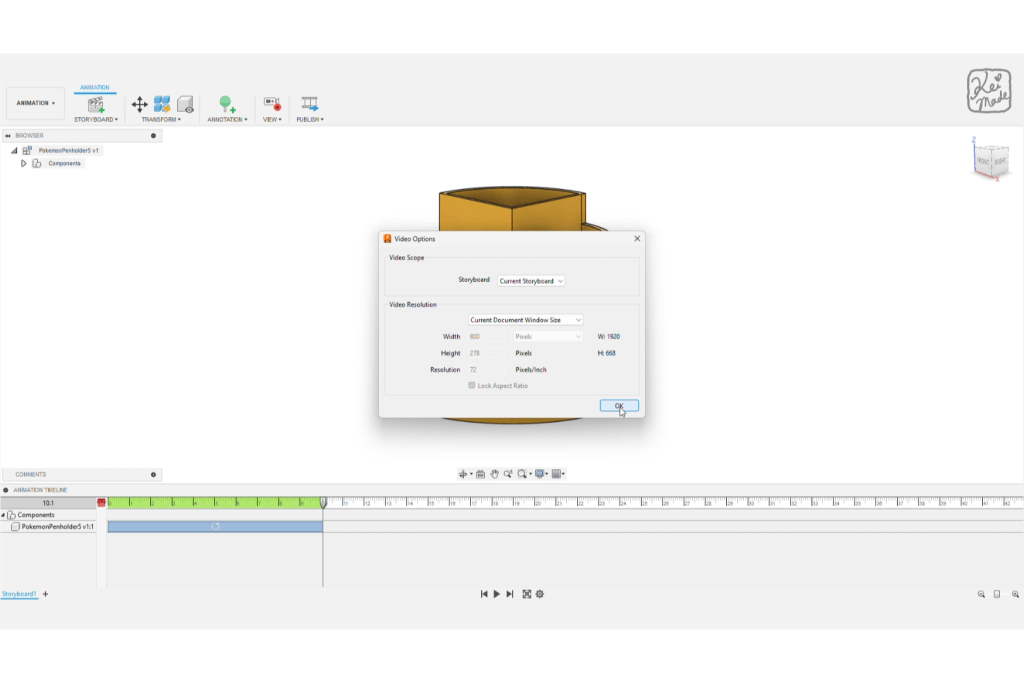
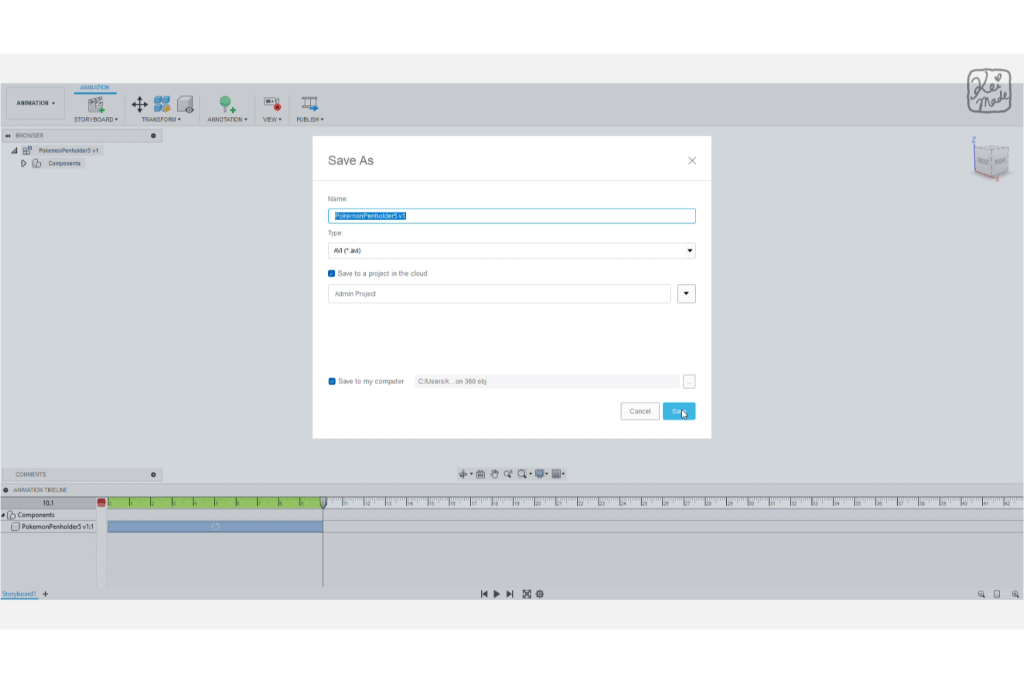
Fusion 360 exports animations as a .avi file. Import it into a video editor like Premiere Pro to change the file type or to edit it. Or convert it to a gif file using an online converter like ezgif.



Leave a Reply